
Acknowledge a policy
Read and formally acknowledge the policies that apply to you, using the guided review experience.
When your organisation publishes a policy that needs formal sign-off, Coverage gives you a short list of what to read and a guided, full-screen review so nothing gets missed. Acknowledging is your record that you've read and understood the policy.
Before you start A Provider Manager must have published the policy with acknowledgement required. If you have anything outstanding, you'll be prompted at login and see an indicator on the Policies item in the sidebar.
Review and acknowledge
- At login, if you have outstanding policies a reminder appears: You have new policies to review and acknowledge. Choose Review now, or Remind me later to dismiss it for now.
- Open Policies from the sidebar. (Provider Managers: open the For review tab.) The list opens with the Requires action only filter on, so you see just what needs action.
- Select Start reviewing (or Review on a single row) to open the full-screen review.
- Read the policy in the built-in viewer. If the file can't be previewed, download it first; Acknowledge stays locked until you've downloaded it at least once.
- Select Acknowledge. Use Previous / Next to move through your queue, or Cancel to leave.
- Continue until the All policies reviewed confirmation appears. You're up to date with all policy acknowledgements.
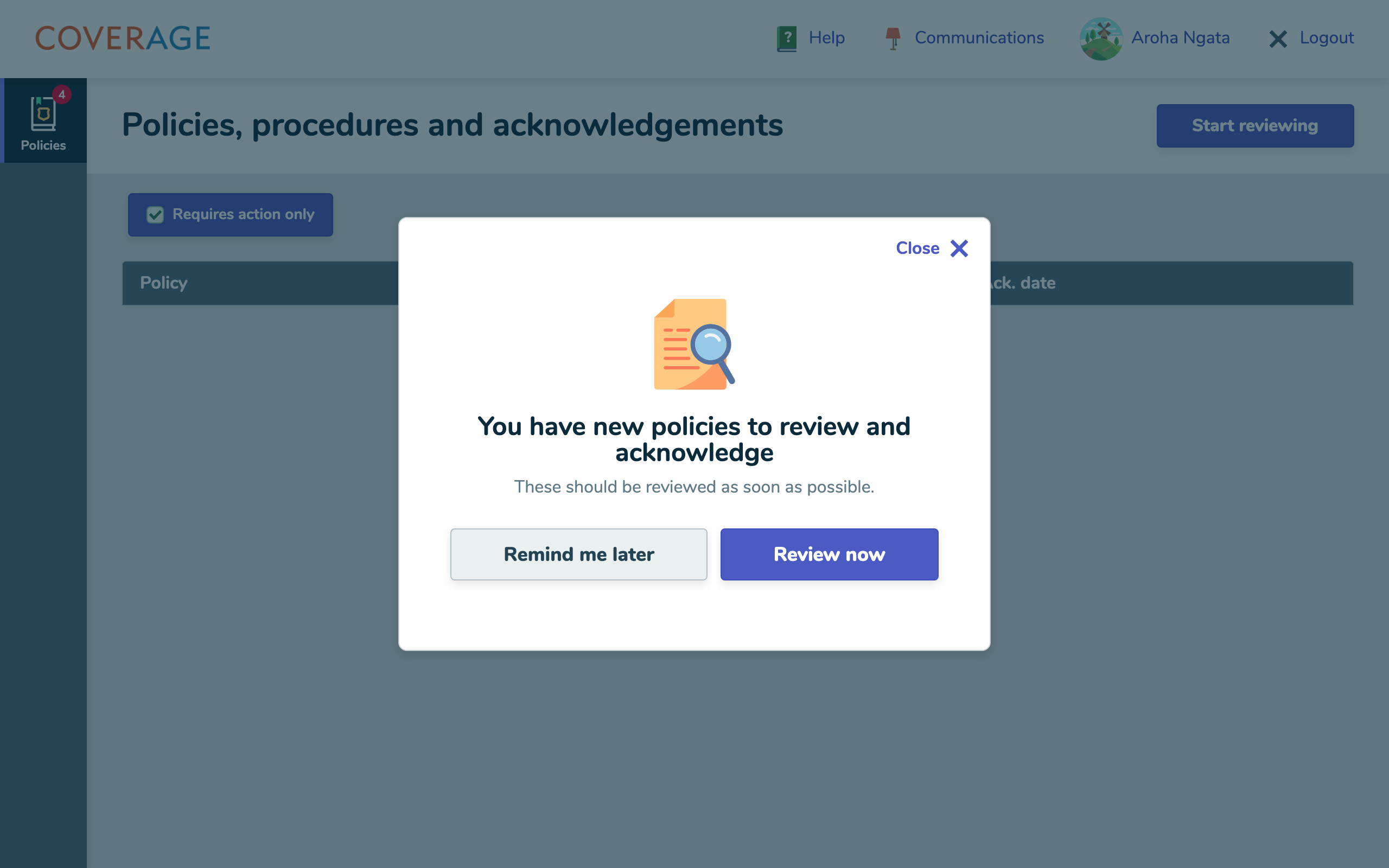 The login reminder when you have policies to review.
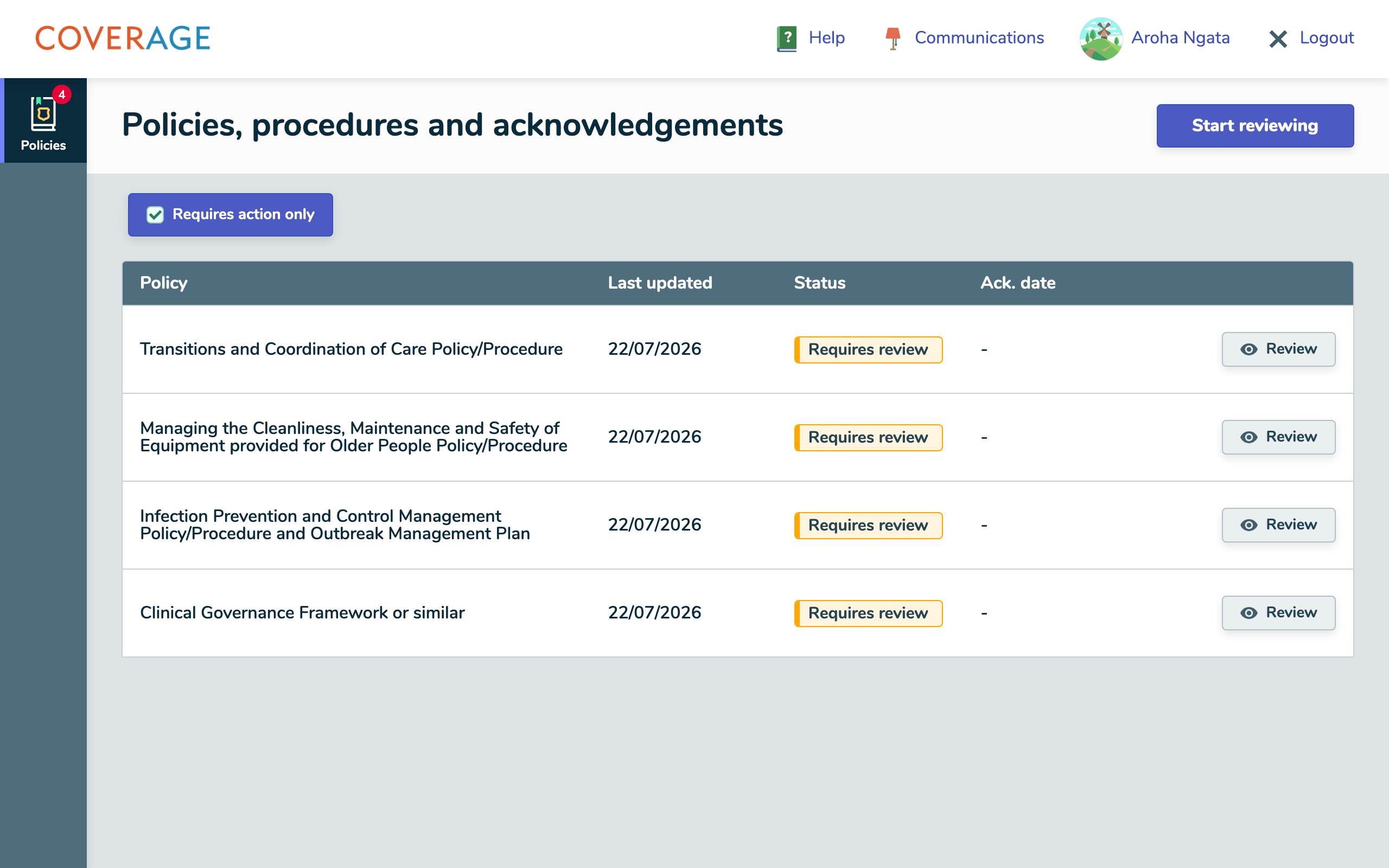 Your outstanding policies, with the Requires action only filter on.
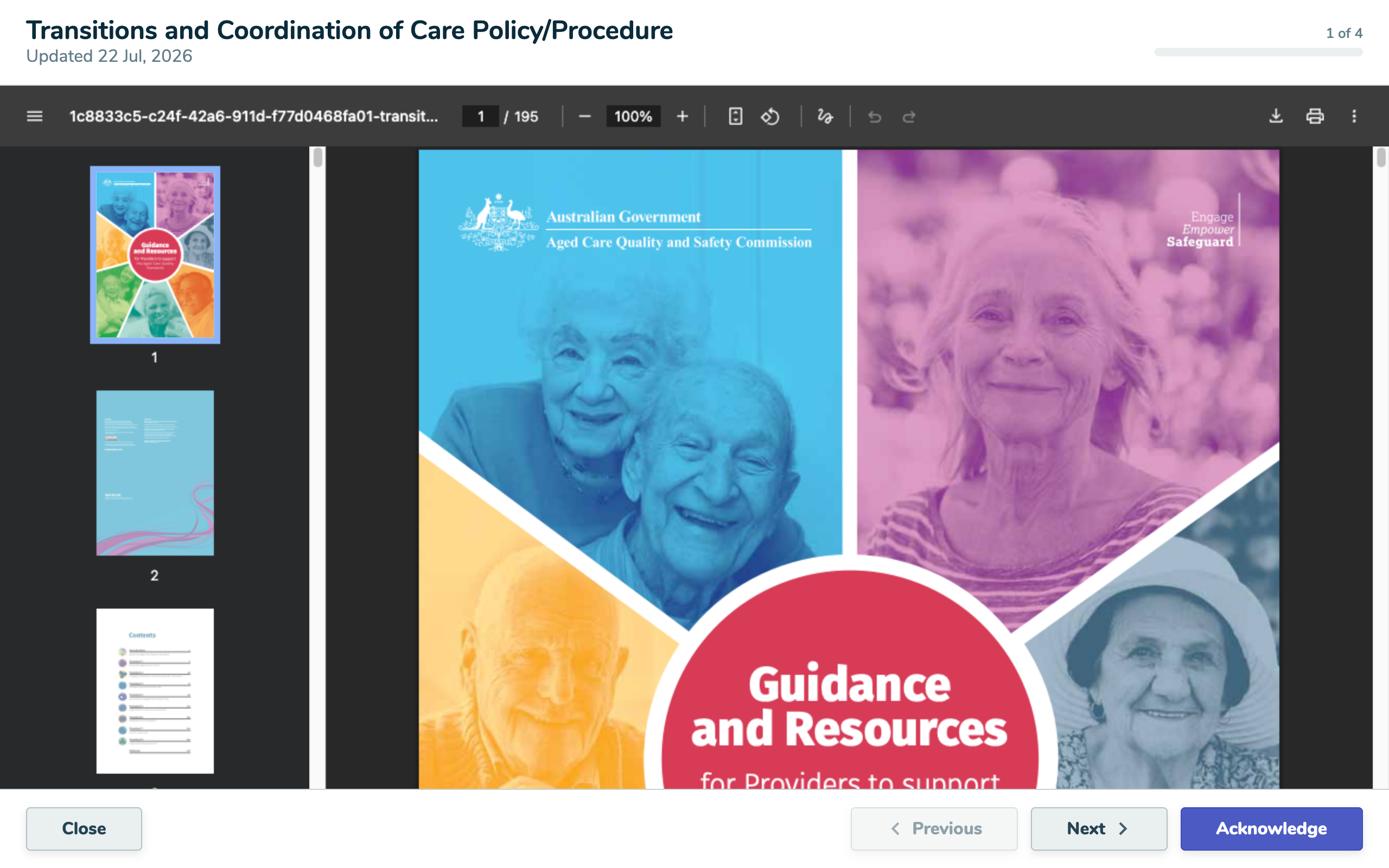 The full-screen review view: read, then Acknowledge.
What the statuses mean
- Requires review: you haven't acknowledged this yet; it needs action.
- Acknowledged: you've signed off; the list shows the date.
- N/A: the policy was published for reference and doesn't require acknowledgement.
Reminders
- When a new policy needs acknowledgement, everyone affected gets an email.
- If you still have outstanding policies, Coverage sends a reminder email each Monday morning until you're up to date.
Tip Acknowledge promptly. The weekly reminders keep coming until your list is clear, and your status feeds the compliance view your managers see.
What happens next
Acknowledging moves the policy to Acknowledged (with today's date), clears the sidebar indicator once nothing is outstanding, and advances you to the next policy. Your acknowledgement is reflected in the Policy dashboard managers use.