
Manage policies and procedures
Publish, version and manage organisation-wide policies and procedures, and decide which ones staff must acknowledge.
The Policies area is where compliance officers publish the organisation's policies and procedures, keep them versioned, and flag which ones staff must formally acknowledge. Unlike supporting documents, policies are organisation-wide: everyone with access sees the same set. This guide covers the Manage tab.
Before you start You'll need the Provider Manager role. Open Policies from the sidebar. The page is titled Policies, procedures and acknowledgements and has three tabs: Dashboard, Manage and For review. Your policy list is seeded for you from the AECT policy set, based on your provider's audit mode (Registration, Renewal or Variation). Ignore the Add custom policy button for now. It's reserved for a future release.
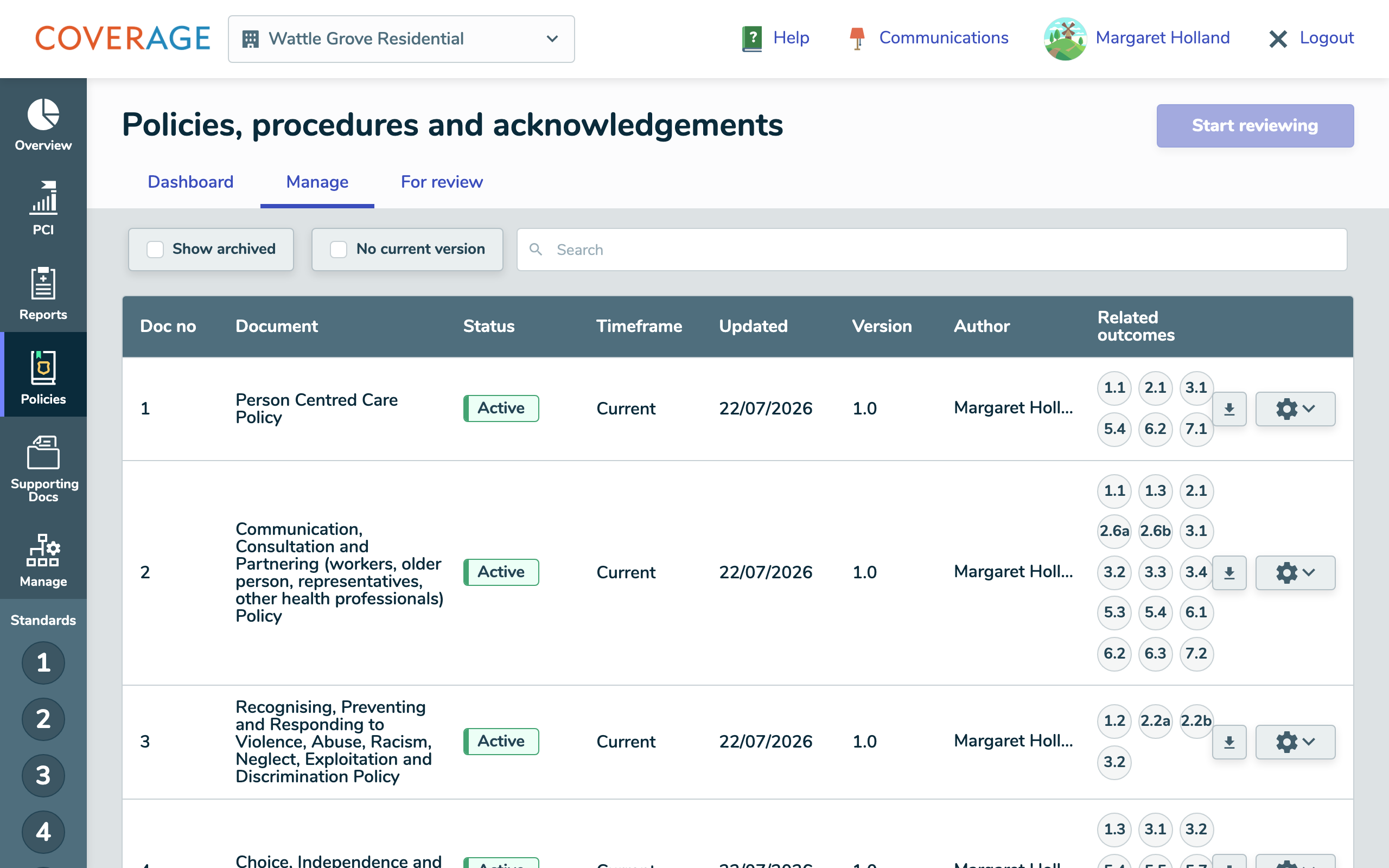 The Manage tab, listing each policy with its status and version.
Publish a policy for the first time
- Go to Policies → Manage. Each row shows the policy's Status, Updated date and Version alongside its document number and name.
- Select a row that has no current version. The Upload policy or procedure modal opens, showing Current version: N/A and New version: 1.0.
- Answer Does this policy require acknowledgement from staff members? Choose Yes or No.
- Drag your file into the Attachments area.
- Select Publish.
 Publishing a first version, with the acknowledgement question.
Update or replace a policy
- On the policy's row, open the cog menu and choose Replace and archive.
- The modal reopens with a banner noting that this will archive the current version and publish a new one.
- Answer Is this a minor update or a major change? This sets the new version number (see below).
- Attach the new file and select Publish. The previous version is archived automatically and stays viewable under Show archived.
To retire a policy without replacing it, use the cog menu's Archive action and confirm.
 Replacing a policy: choosing a minor update or a major change.
How versioning works
- Every policy starts at 1.0.
- A minor update increases the decimal:
1.0 → 1.1. Use it for small wording or formatting fixes. - A major change increases the whole number and resets the decimal:
1.1 → 2.0. Use it when the substance changes.
Staff see this version number, so choose deliberately.
Acknowledgement: Yes vs No
- No: the policy sits in the repository for reference. Its acknowledgement column shows N/A and no staff sign-off is required.
- Yes: staff are notified and prompted to read and acknowledge it. Only mark Yes for policies people genuinely must formally read.
Tip If you publish a PDF, some staff may need to download it before they can view it. Coverage warns you of this when you upload. See Acknowledge a policy for the staff experience.
What happens next
Publishing archives any prior version automatically and updates the Version and Updated columns. Policies marked requires acknowledgement flow into the staff acknowledgement queue and the Policy dashboard, where you can track who's signed off.