
Track policy acknowledgements
Use the Policy dashboard to see acknowledgement compliance at a glance and drill into individual staff who are behind.
The Policy dashboard gives compliance officers a single view of how the organisation is tracking against its policy acknowledgements. It also lets you drill into exactly who is behind, so follow-up is quick.
Before you start You'll need the Provider Manager role. The dashboard only summarises data the other Policies features produce, so it's most useful once policies are published and staff have started acknowledging them.
Read the summary
- Open Policies from the sidebar and select the Dashboard tab.
- The Staff status donut shows your overall Compliant vs Not compliant split across all staff.
- The Policy status donut shows how many required policies are Active (published) vs Not published (still missing).
 The Staff status and Policy status summaries.
Find and act on non-compliant staff
- Scroll to the Individual staff status table. Columns show Person, Status, To review (how many policies are outstanding) and Last login.
- Tick Show only non-compliant to hide people who are up to date, or type a name into Search.
- On a Not compliant row, select View to expand it and see that person's Missing policy list, each with its status (for example Requires review).
- Select Close to collapse the row, then follow up with the staff member as needed.
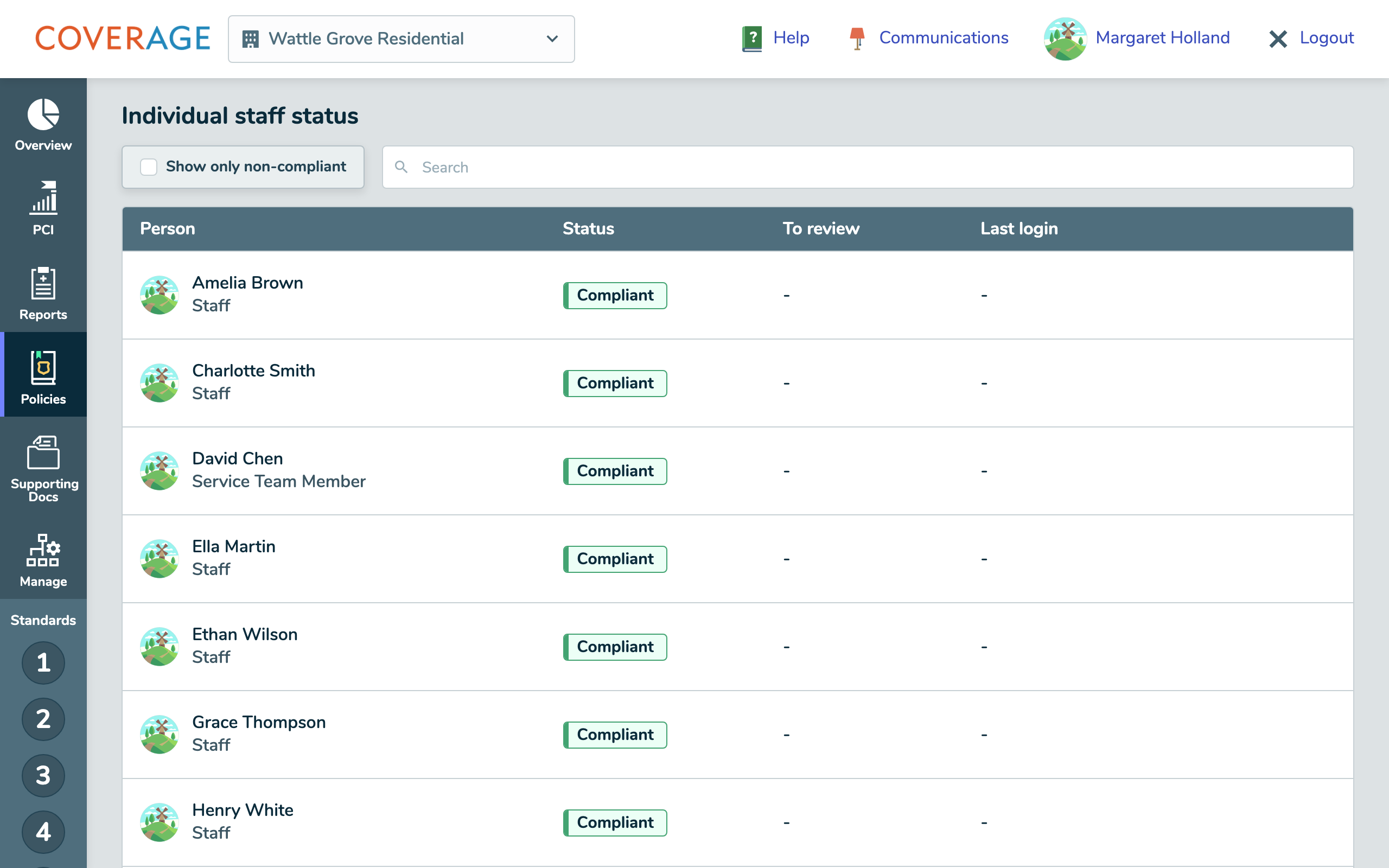 The Individual staff status table.
 An expanded row showing a staff member's missing policies.
What the terms mean
- Compliant: has acknowledged every policy that applies to them (someone whose policies are all N/A still counts as compliant).
- Not compliant: has one or more policies still to acknowledge.
- Active / Not published: whether a required policy has been published yet.
- To review: the number of outstanding policies for that person.
Tip Check Last login alongside status. It helps you tell a genuine lapse from an account that simply hasn't been used yet.
What happens next
The dashboard is read-only reporting. As staff acknowledge policies and you publish any that are missing, the donuts and table update the next time the dashboard loads. If a filter or search returns nothing you'll see No staff match your filters. Clear it to see everyone again.