
Switch between services and the provider level
Use the view selector to move between the provider-wide view and each of your services, and see which areas your role can reach.
Most of your work in Coverage happens inside a single view: either the provider level (your whole organisation) or one of your services. The view selector at the top left of every page is how you move between them. What you can switch to depends on your role.
Before you start The view selector sits at the top left, next to the Coverage logo, and shows the name of the view you're currently in. Staff users (acknowledgements only) don't see it, because they only ever work in the policy review area.
Open the view selector
- Look at the top left of the app, next to the logo. The current view is shown with an icon and a name (your provider or a service).
- Select it to open the dropdown.
- The dropdown groups everything you can reach into Provider Management and Services.
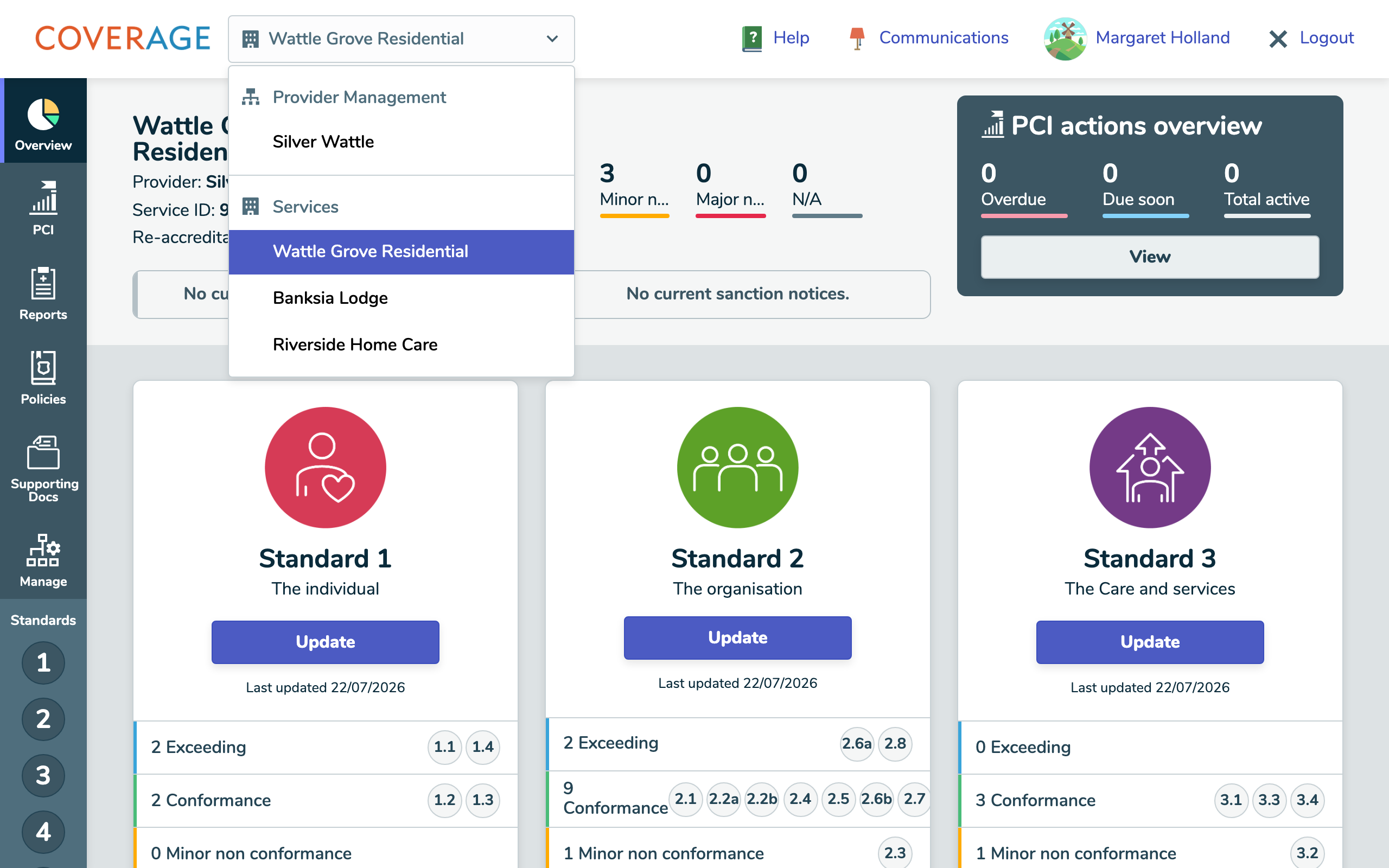 The view selector open, showing the Provider Management and Services groups.
How the areas are grouped
The dropdown organises your access into up to two groups. Provider Managers see both; Service Team Members see only Services.
| Group | Who sees it | What it opens |
|---|---|---|
| Provider Management | Provider Managers only | The provider-wide view: your organisation-level (AECT) evidence and settings |
| Services | Anyone with service access | A single service, scoped to the services assigned to your account |
Switch to the provider level
- Open the view selector.
- Under Provider Management, select your provider.
Coverage moves you into the provider-wide view, where organisation-level (AECT) evidence and settings live. Only Provider Managers have this group. If you don't see it, your role is scoped to services and you'll go straight to the Services list instead.
Switch to a service
- Open the view selector.
- Under Services, select the service you want.
Coverage switches to that service. If you were viewing a standard or an outcome, it keeps you on the same page for the service you picked, so you can compare the same spot across services quickly. Otherwise it returns you to Overview.
Note The Services list only ever shows the services your account can access. Provider Managers get every service automatically; Service Team Members get the ones they were assigned. To change which services someone can reach, a Provider Manager edits them from Manage → Users.
Good to know
- The name in the selector always reflects your current view, so you can tell at a glance whether you're at the provider level or in a service.
- The rest of the app (Standards, Reports, PCI, Supporting Docs) follows the view you've selected: switch views and those areas update to match.
- Staff users have no view selector because their access is limited to acknowledging policies.