
Understanding roles and access
How Coverage's user roles work: what Provider Managers, Service Team Members and Staff can each see and do, and how access is scoped to your services.
Coverage controls what each person can see and do through a single setting: their User level, or role. Choosing the right role keeps sensitive audit evidence, reports and settings in the right hands, while giving each person exactly the access they need and nothing more.
Before you start You set a person's role when you invite them, from Manage → Users. You'll need the Provider Manager role to add or change users.
The three roles
Coverage has three roles. From most access to least, they are:
| Role | Best for | Scope |
|---|---|---|
| Provider Manager | Whoever runs compliance for your organisation | The whole provider: every service, plus provider-level evidence and settings |
| Service Team Member | People who do the day-to-day compliance work at one or more services | Only the services they're assigned to |
| Staff | Everyone who just needs to read and sign off policies | Policy acknowledgements only |
- A Provider Manager has full access. They manage users, policies, reports, supporting documents and your provider and service settings, and they can work at both the provider level and every individual service.
- A Service Team Member does the compliance work (evidence, ratings, the plan for continuous improvement, reports and service-level documents) for the specific services they're allocated to, and nothing outside them.
- A Staff user only ever sees the policies assigned to them, which they read and acknowledge. Everything else is hidden.
How access is scoped
The big difference between the roles is scope: how much of your organisation a person can reach.
- Provider Managers work across everything. In the view selector at the top of the app they can switch between a Provider Management view (your provider-wide, or AECT, evidence and settings) and any individual service. Every service is available to them automatically.
- Service Team Members are scoped to their services. They only see the services they were assigned when their account was created. There is no Provider Management view for them, so provider-level evidence and settings stay out of reach.
- Staff aren't scoped to a service at all. The role is provider-wide but limited to acknowledgements, so there is no service picker and no view selector.
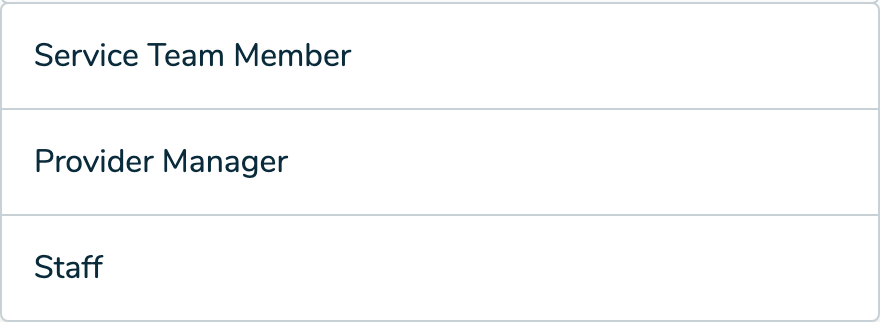 The User level dropdown when adding a user, listing the roles you can assign.
Choosing the right role
- Pick Staff whenever someone only needs to acknowledge policies. It's the safest default for general team members.
- Pick Service Team Member for people who maintain evidence, ratings and documents for particular services, but shouldn't manage users or touch other services.
- Pick Provider Manager for the small number of people who own compliance across the organisation and need to manage users and settings.
Tip Grant the least access that lets someone do their job. You can always change a person's role later from Manage → Users, so start narrow and widen only when needed.